
View and Manage Vessels
View and Manage Vessels
You can view and manage vessels in various methods within Podium.
- Select a vessel from the vessel list to view its current position on the map.
- The map displays the vessel icon with a course indicator showing direction of travel.
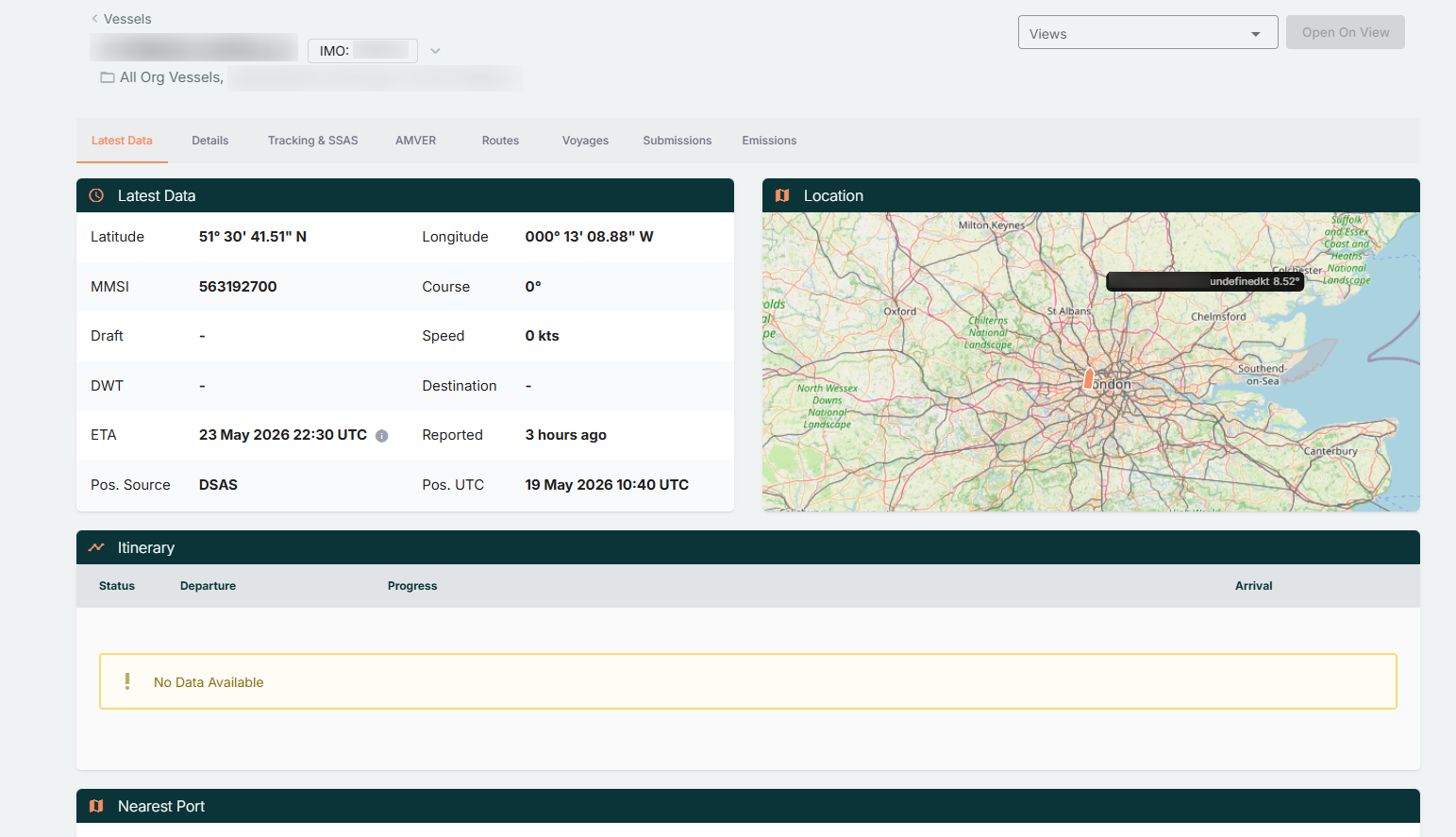
- Select Full Details to open the vessel details page, which includes tabs such as:
- Latest Data - You can view the latest positional data for the vessel, including Map location, Itinerary and nearest Port.
- Details - You can view the Vessel Details and Historical Position Reports.
- Tracking & SSAS - Here will be details of the active Communicator for the vessel, where you can initiate SSAS testing via the Test Mode function. In addition, this will be where the SSAS Contacts can be configured.
- AMVER - You can enable/disable AMVER for the vessel.
- Routes - You can view all assigned routes for the vessel, and also have the option to create new routes.
- Voyages - This is a section where you can view/create voyages for the vessel.
- Submissions - All submitted Noon Data Reports will be shown here. (*Advanced Feature)
- Emissions - You can view the specific vessel information applicable for Emissions and review analytical data based off Noon Data Report submissions. (*Advanced Feature)
- Use the search bar at the top left corner of the page, to quickly locate specific vessels.
Filter vessels using the dropdown menu 'Group' to display all vessels or created vessel groups.