
Latest Position, Timeline & Single Vessel View
Latest Position Mode vs Timeline Mode
Podium offers two main ways to view vessel data on the Fleet page: Latest Position Mode and Timeline Mode. You can also drill into a Single Vessel View for more detail.
Latest Position Mode
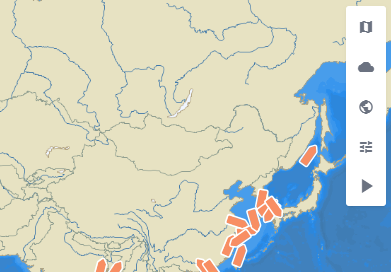
When Latest Position Mode is enabled, the Fleet page shows only the most recent position report received for each vessel.
- No historical track lines are displayed on the Fleet page.
- This view is ideal for quickly checking the current status and latest reported positions across your fleet.
If you want to view historical data on the Fleet page, click the Play icon at the top-right corner of the map and select a date range (up to 31 days) to switch into Timeline Mode.
Timeline Mode
When Timeline Mode is enabled, the Fleet page provides a more detailed historical view of vessel activity. You can enable it by selecting the Play button on the right-hand side toolbar and choosing a date range.
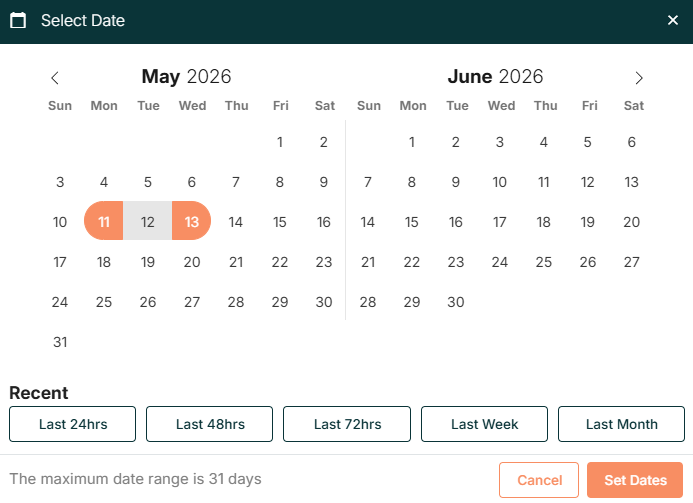
In this mode:
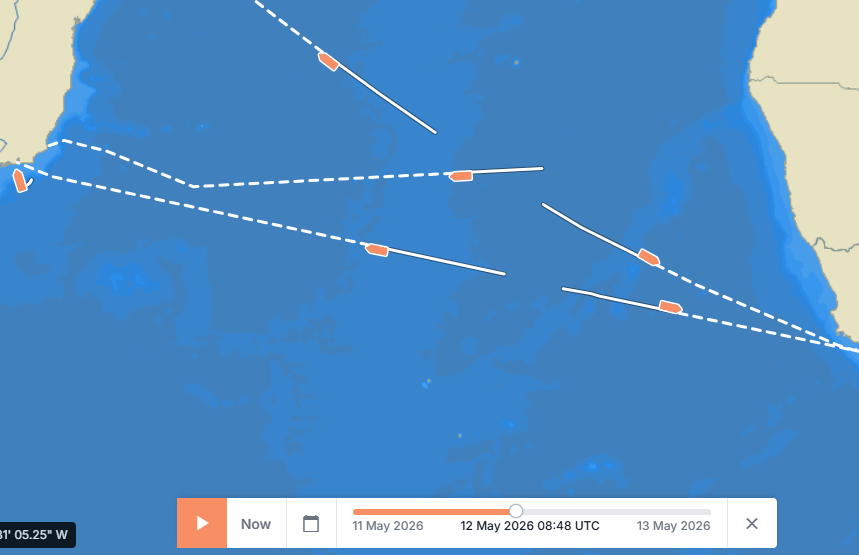
- Vessel track lines are displayed on the map.
- Any vessel that has reported within the selected date range will appear on the chart.
- Vessels that have not reported in the selected period will not be displayed on the map.
- When weather overlays are enabled, you can play historical weather data alongside vessel movements for the chosen timeframe.
This makes Timeline Mode ideal for:
- Reviewing route history
- Analysing vessel movement patterns
- Investigating incidents during a specific period
To exit Timeline Mode and return to Latest Position Mode, click the X icon next to the timeline scrubber at the bottom of the page.

Single Vessel View (Single Position Tracking Mode)
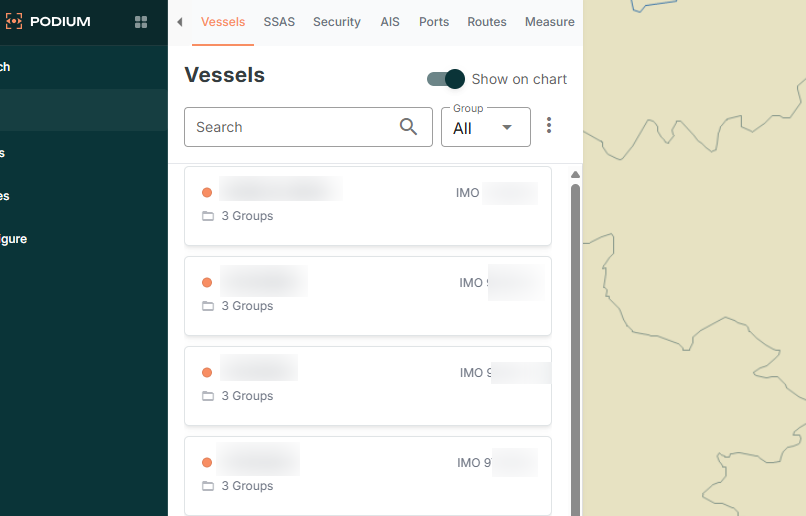
To focus on one vessel and its recent movements, you can open Single Vessel View in either of the following ways:
- From the Vessels tab, select a vessel by name, or
- From the Fleet page, click directly on the vessel icon on the map.
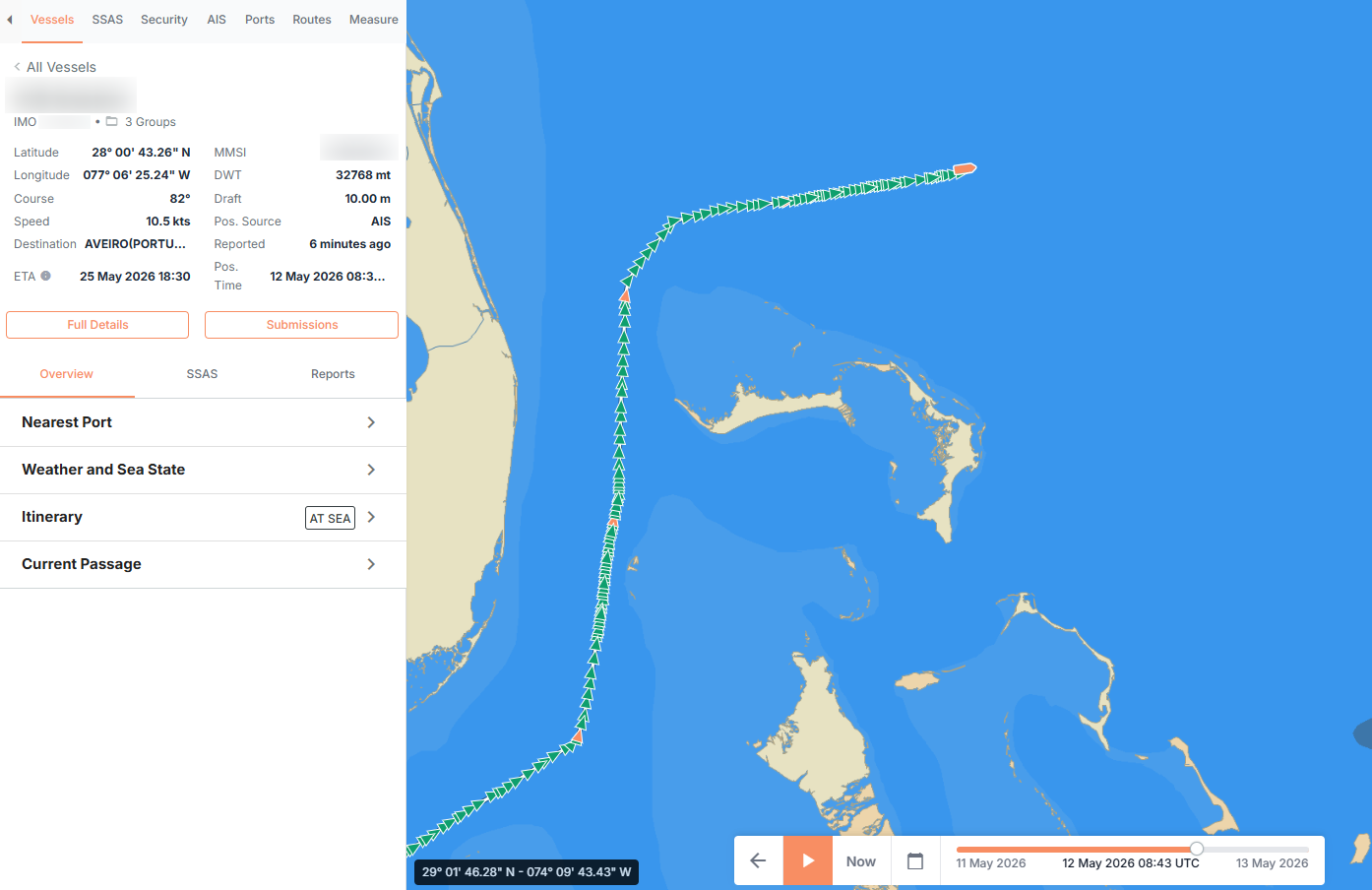
Once selected, the map will: - Zoom in to the chosen vessel, and
- Display only that vessel on the screen.
By default, Single Vessel View will show:
- The last 3 days of positional data for the selected vessel, counted back from the time of the last received report.
- A track line with positional report dots.
- The estimated position track continuing from the last known point.
This view is useful for understanding where a specific vessel has been recently, without the clutter of other vessels.
Viewing Latest Vessel Data When a Vessel Is Not Visible
If a vessel does not appear on the chart while using Timeline Mode, it likely has no reports within the selected date range.
To view its most recent data:
- Select the vessel name from the list.
- Choose Full Details.
- The Latest Data section will show the most recent position report received.
Summary
- Latest Position Mode
- Shows only the most recent position for each vessel on the Fleet page.
- No historical tracks are shown.
- Timeline Mode
- Shows vessel track lines and all reports within your selected date range (up to 31 days).
- Allows playback of historical weather data with weather overlays.
- Single Vessel View (Single Position Tracking Mode)
- Focuses on one vessel.
- Shows only that vessel on the map.
- Displays the last 3 days of positional data, including track line and estimated positions, counted from the last report.
- Missing Vessel in Timeline Mode
- If a vessel is not visible on the map, it probably has no reports in the chosen date range.
- Use Full Details to see its latest report.