
Podium Mobile Application
Using the mobile application
The mobile application gives you access to essential vessel information and SSAS functions from your mobile device. It complements the main web-based platform, but does not include every web-platform feature.
The mobile application is designed for quick access to vessel information, map data, and essential SSAS actions. It does not provide the full set of Fleet and administration features available on the main web-based platform.
Where can I download the application?
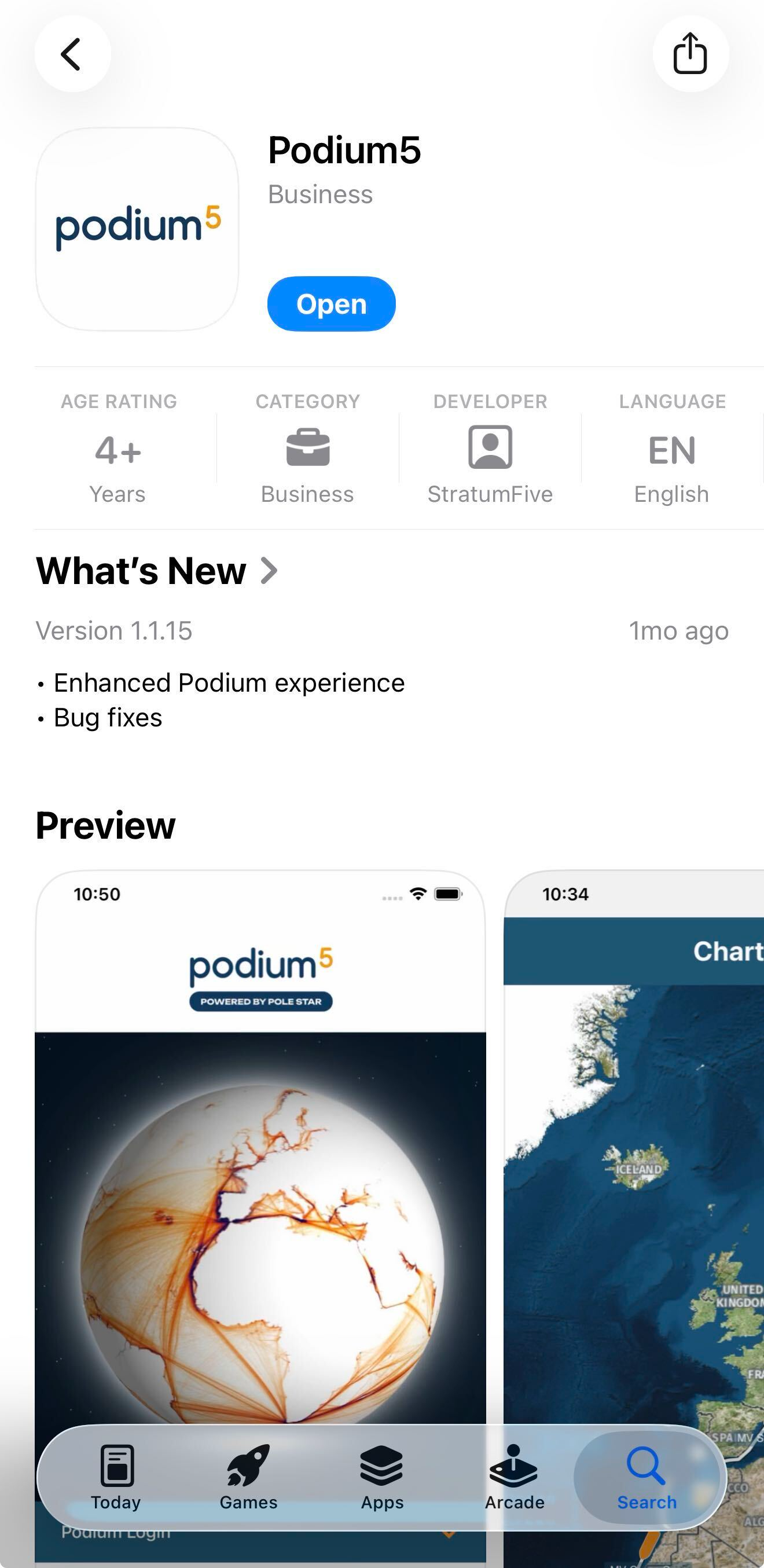
The mobile application is available on both Apple and Android devices. The application name is Podium5 which is searchable within both the Apple App Store and the Google Play Store.
Kindly note that the application is presently unavailable within the Google Play Store, and will be restored soon.
Access the Application
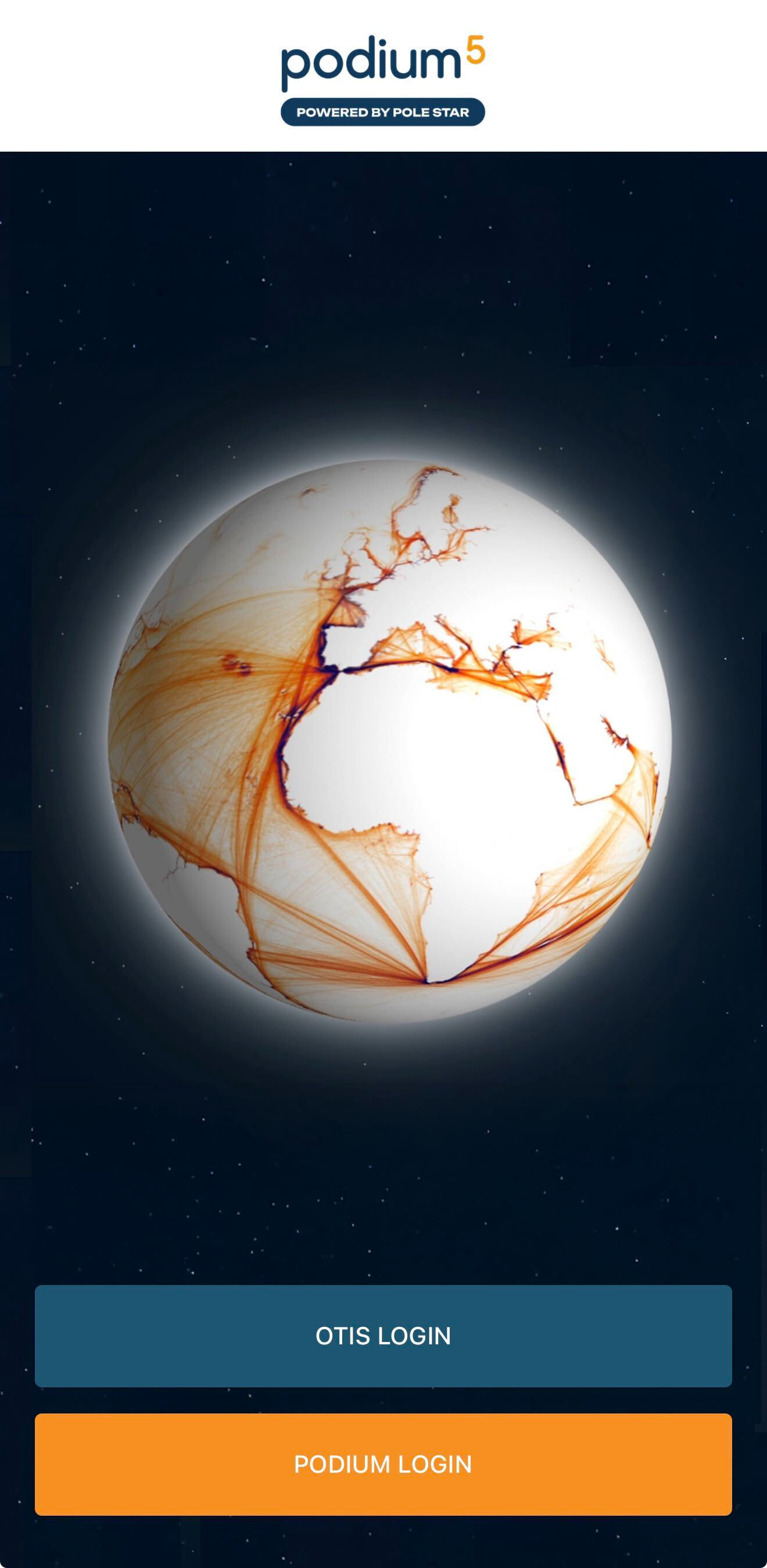
- Open the mobile application on your device.
- Enter the same account credentials that you use for the web-based platform of Podium.
- Select Log in.
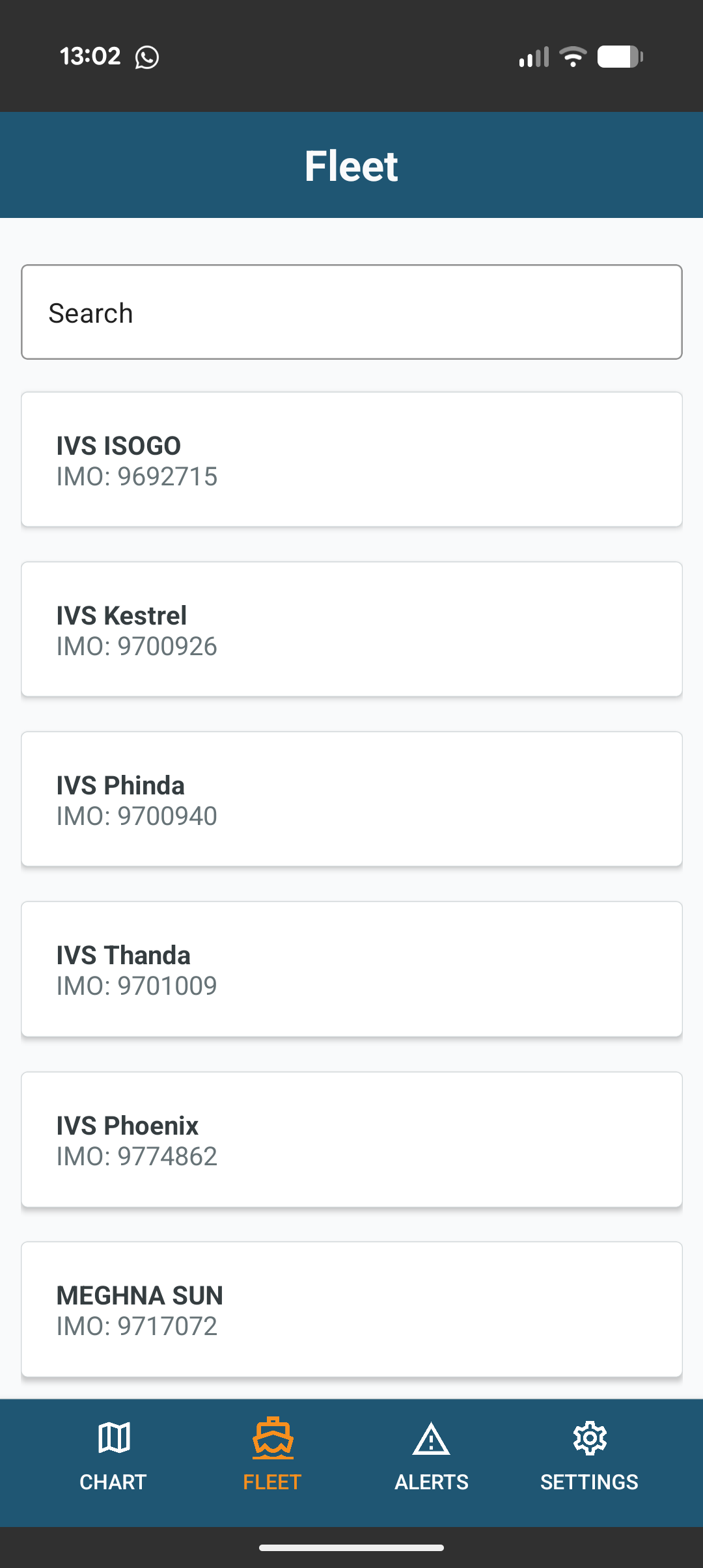
- Once signed in, open the vessel list to view the vessels available to your account.
Your available vessels and actions depend on your user permissions and the configuration of each vessel. If you cannot see a vessel or action, check that you are using the correct account and contact your organisation’s administrator if required.
Viewing a vessel
To start viewing a vessel, navigate to Fleet and select a vessel from the list to open its vessel view.
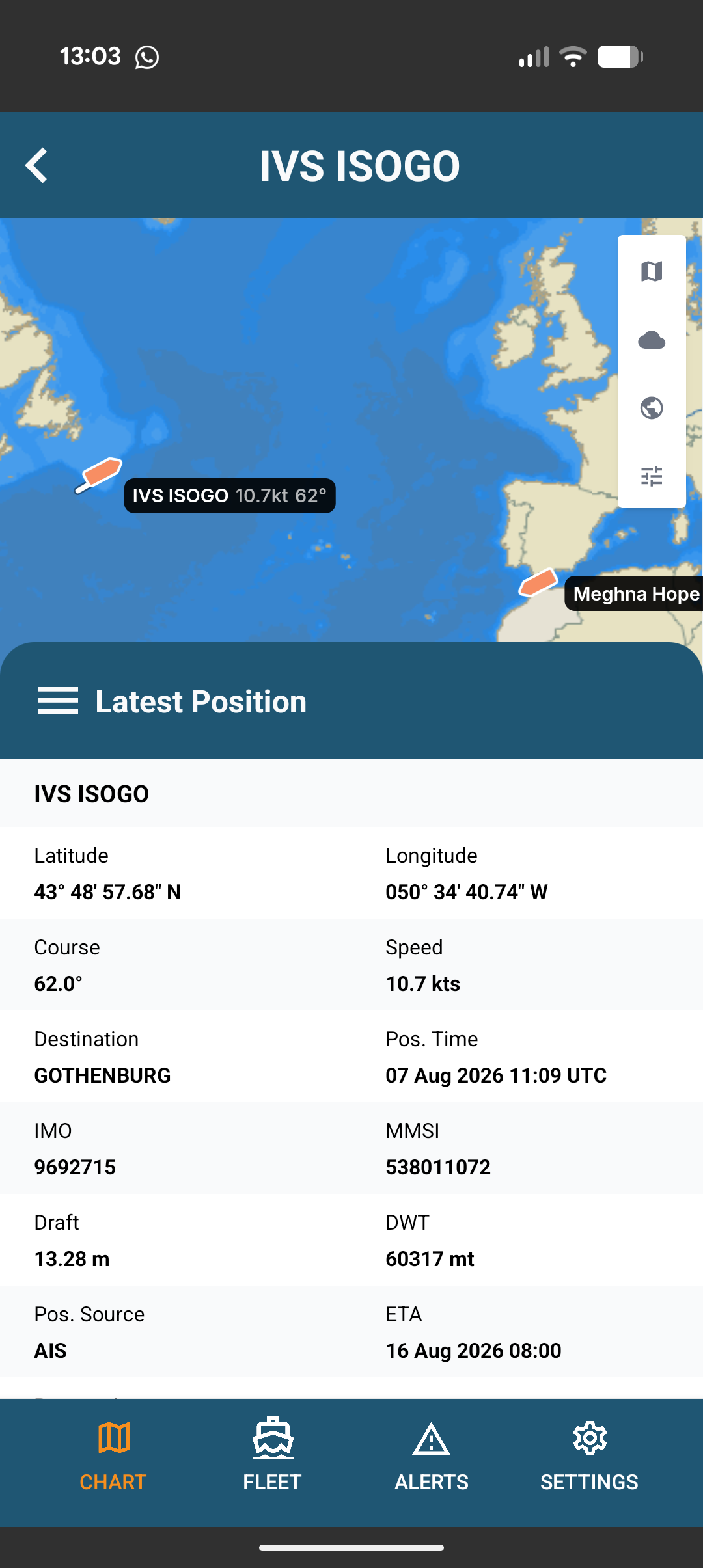
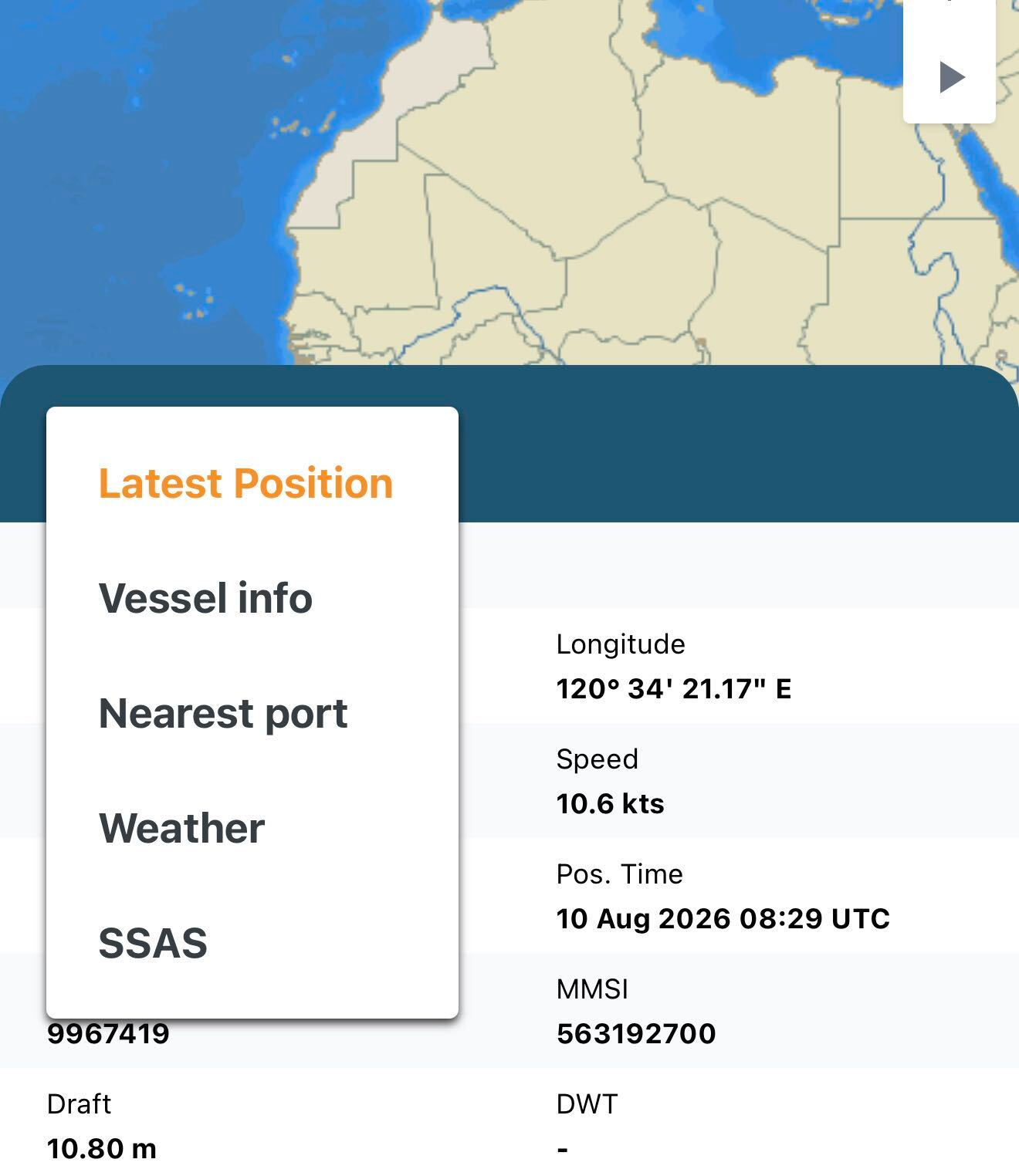
When a vessel is selected, you will be met with the Latest Position – View the vessel’s most recently reported position. Within this section you will be met with all the applicable information regarding the latest position that the vessel has received so far within the platform.
Alongside the Latest Position, if you select the Menu Icon (the 3 lines), the following information and functions are available:
- Latest Position – View the vessel’s most recently reported position.
- Vessel Info – Review key vessel information.
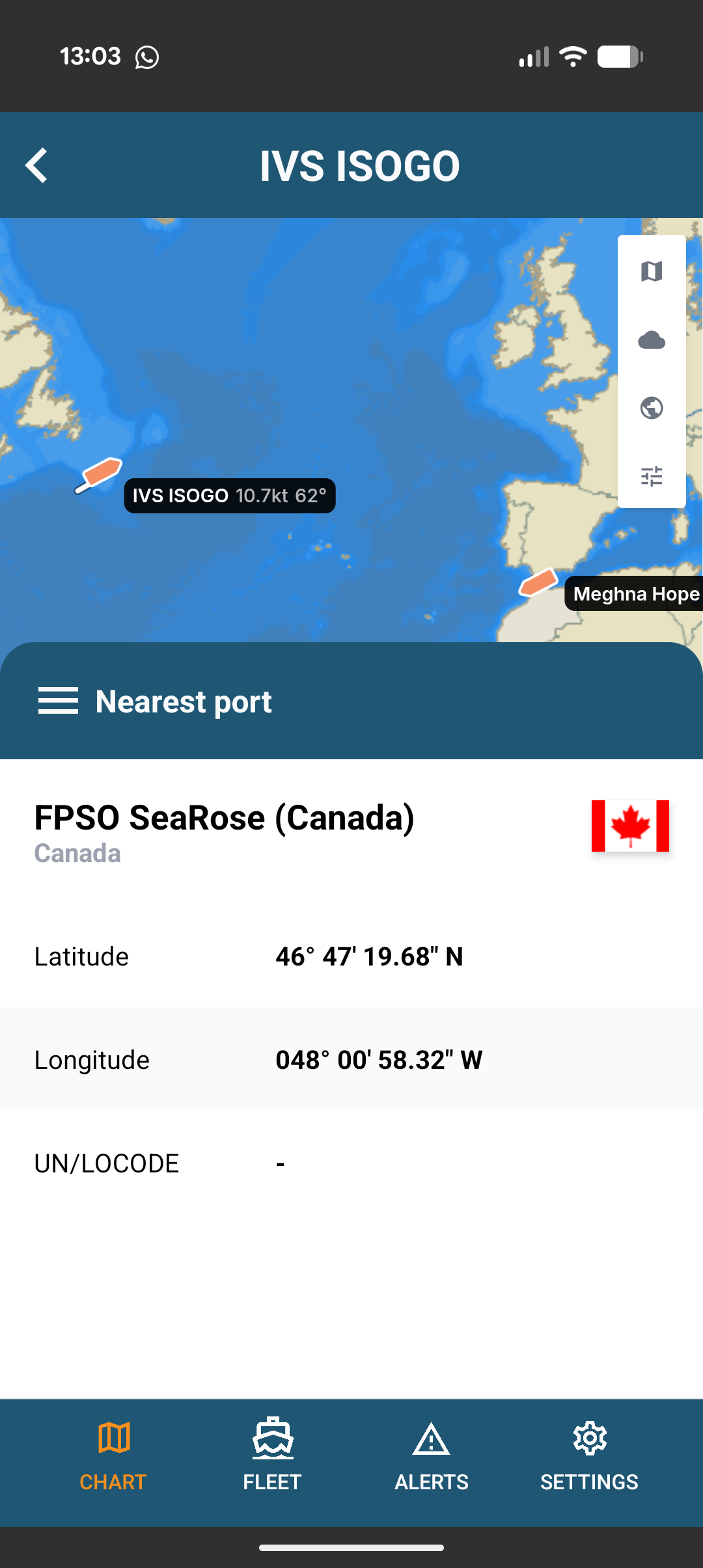
- Nearest Port – View the port nearest to the vessel.
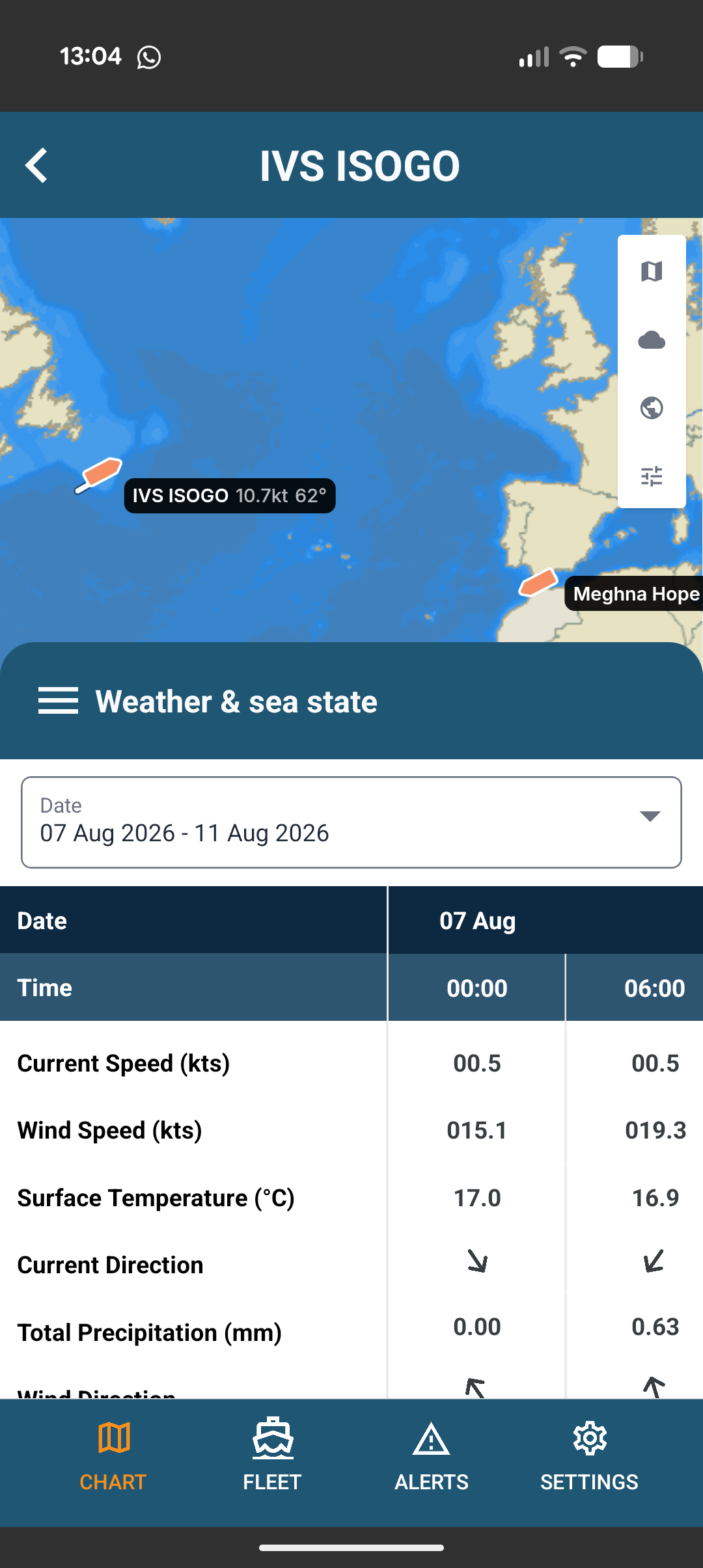
- Weather – View the available weather forecast for the vessel’s location.
- SSAS – Access SSAS functions, including test mode and alert-reset actions.
Use chart overlays and toggles
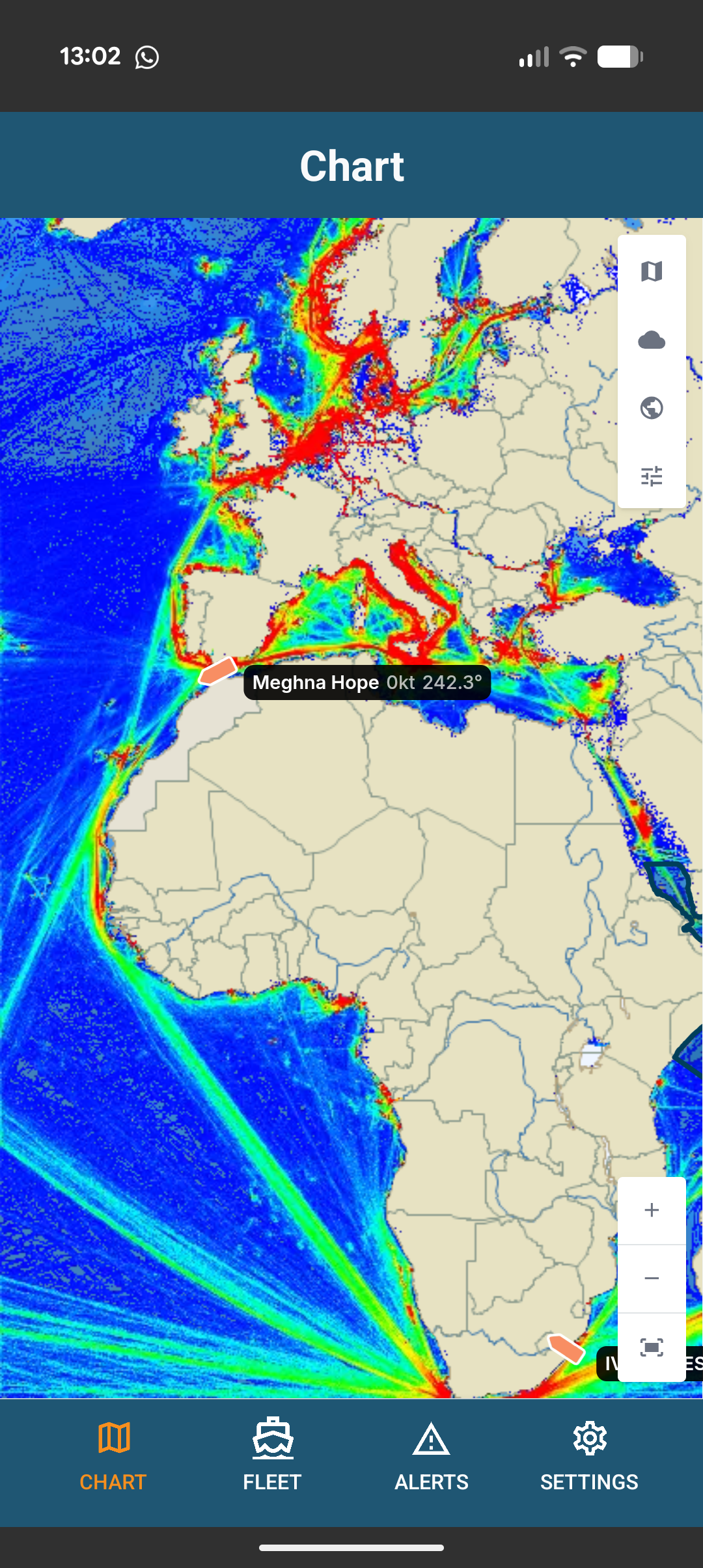
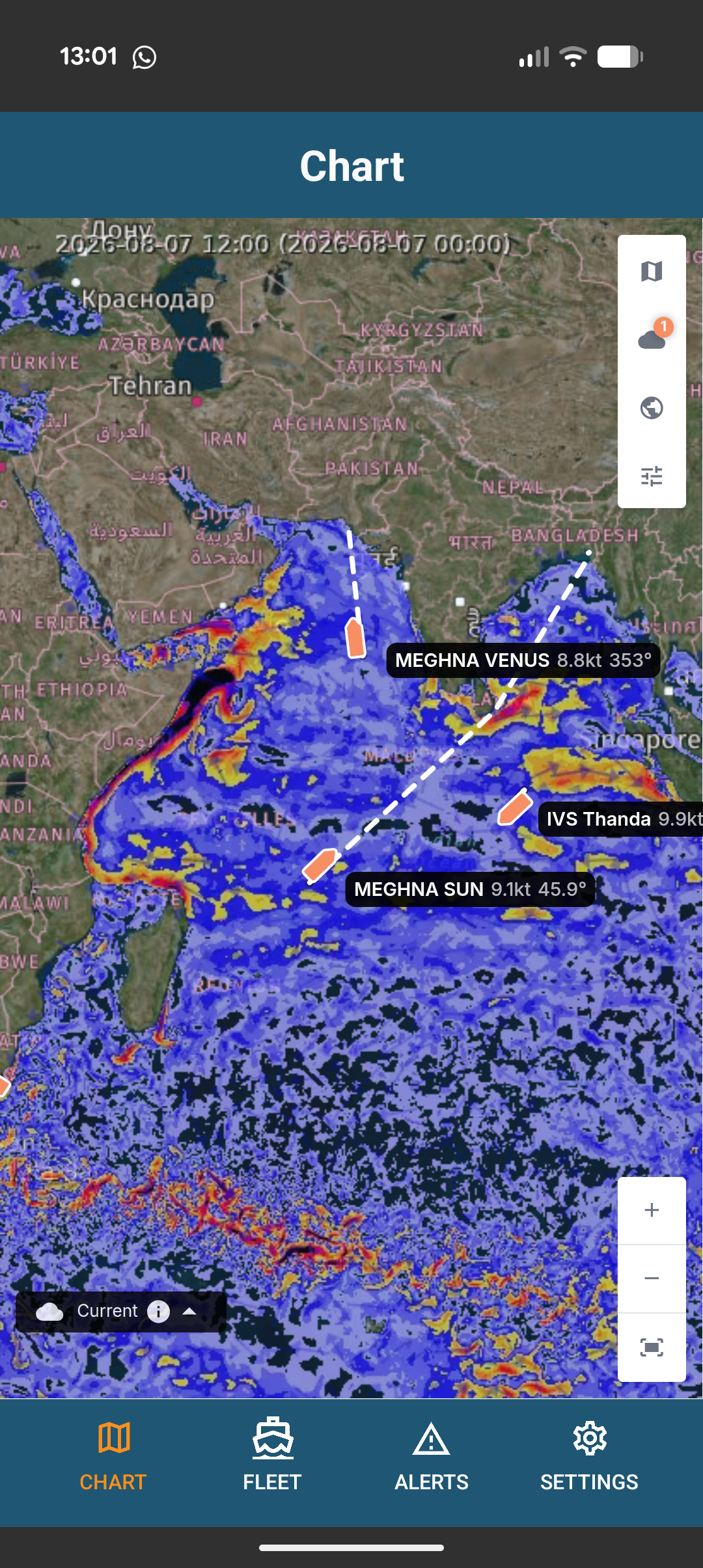
The mobile application supports the same available chart overlays and map toggles as per the web-based platform of Podium. Use them to customise the information displayed on the vessel map.
Select an overlay or toggle to enable it, and select it again to disable it where supported.
Manage SSAS functions
Enable SSAS test mode
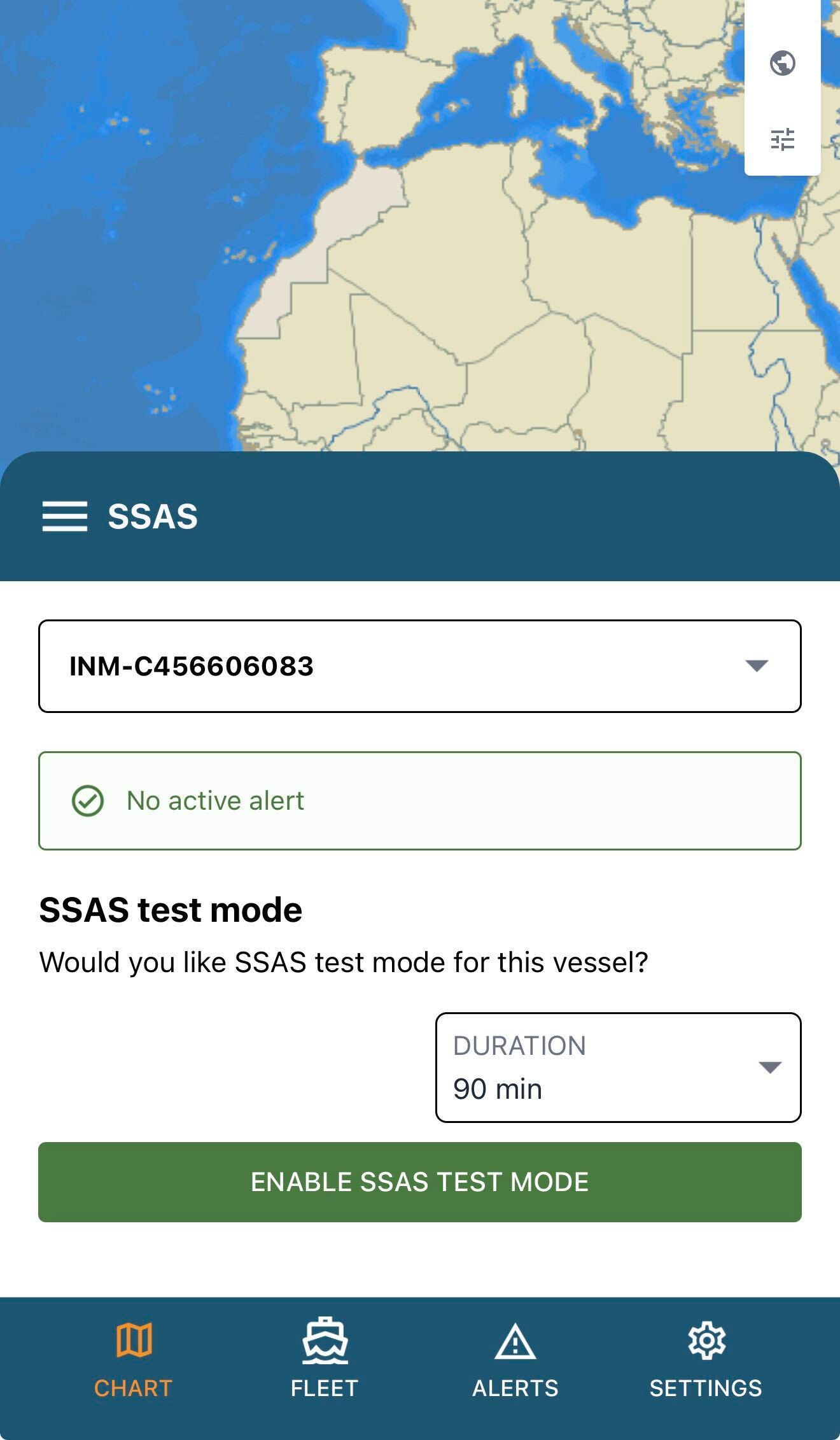
Authorised users can enable SSAS test mode from the vessel’s SSAS Terminal.
- Select the vessel.
- Expand the Menu Icon
- Select SSAS
- Here you can enable SSAS Test Mode for the currently configured communicator.
- Confirm the action when the required duration is set.
When enabled, all SSAS alerts received during the Test Mode window will be received as Test alerts, notifying all recipients set to receive Test notifications.
Reset an SSAS alert
Authorised users can reset an active SSAS alert from the vessel’s SSAS section. Within the same section which shows an active alert, you will have the option to reset the alert.
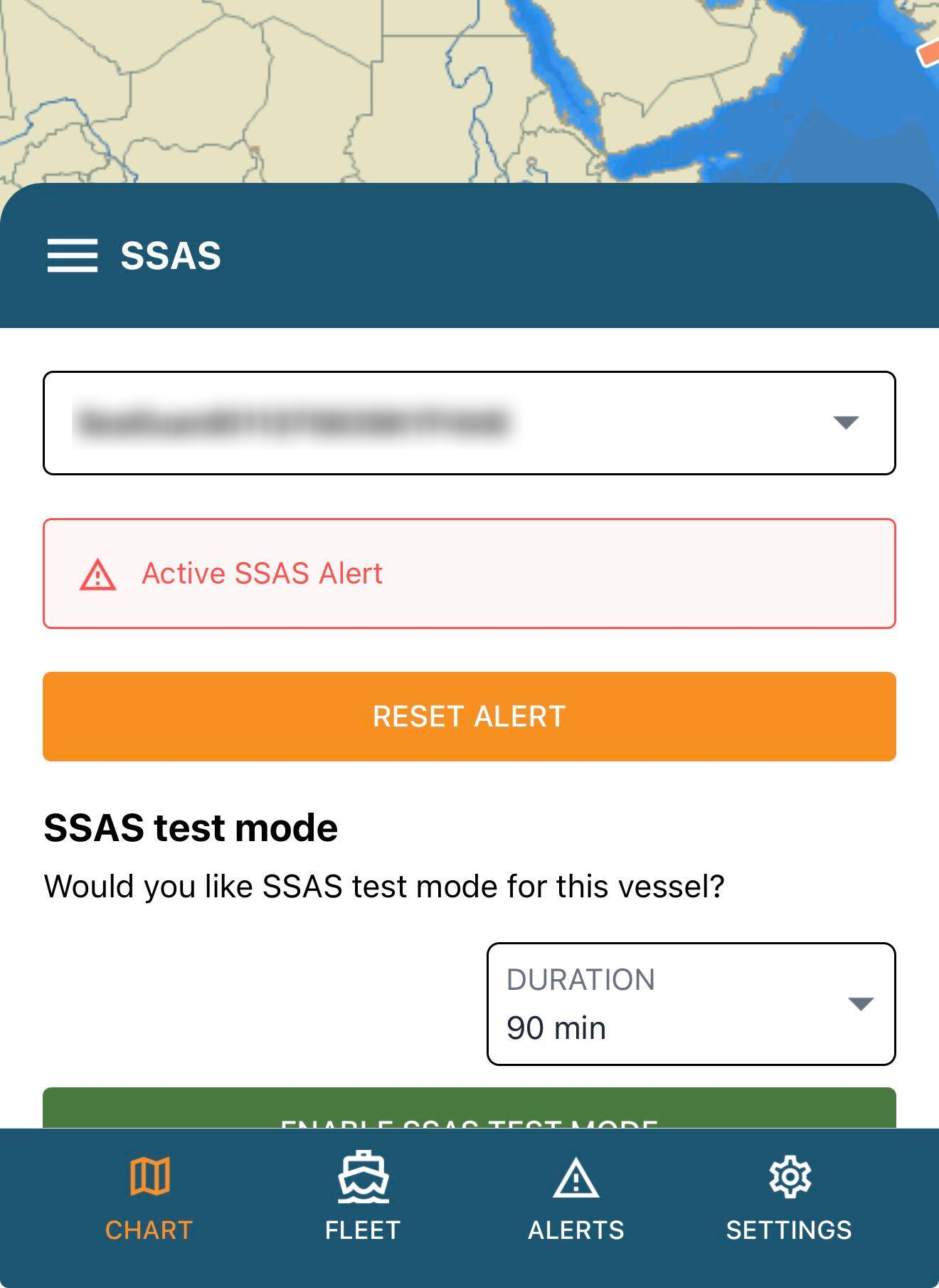
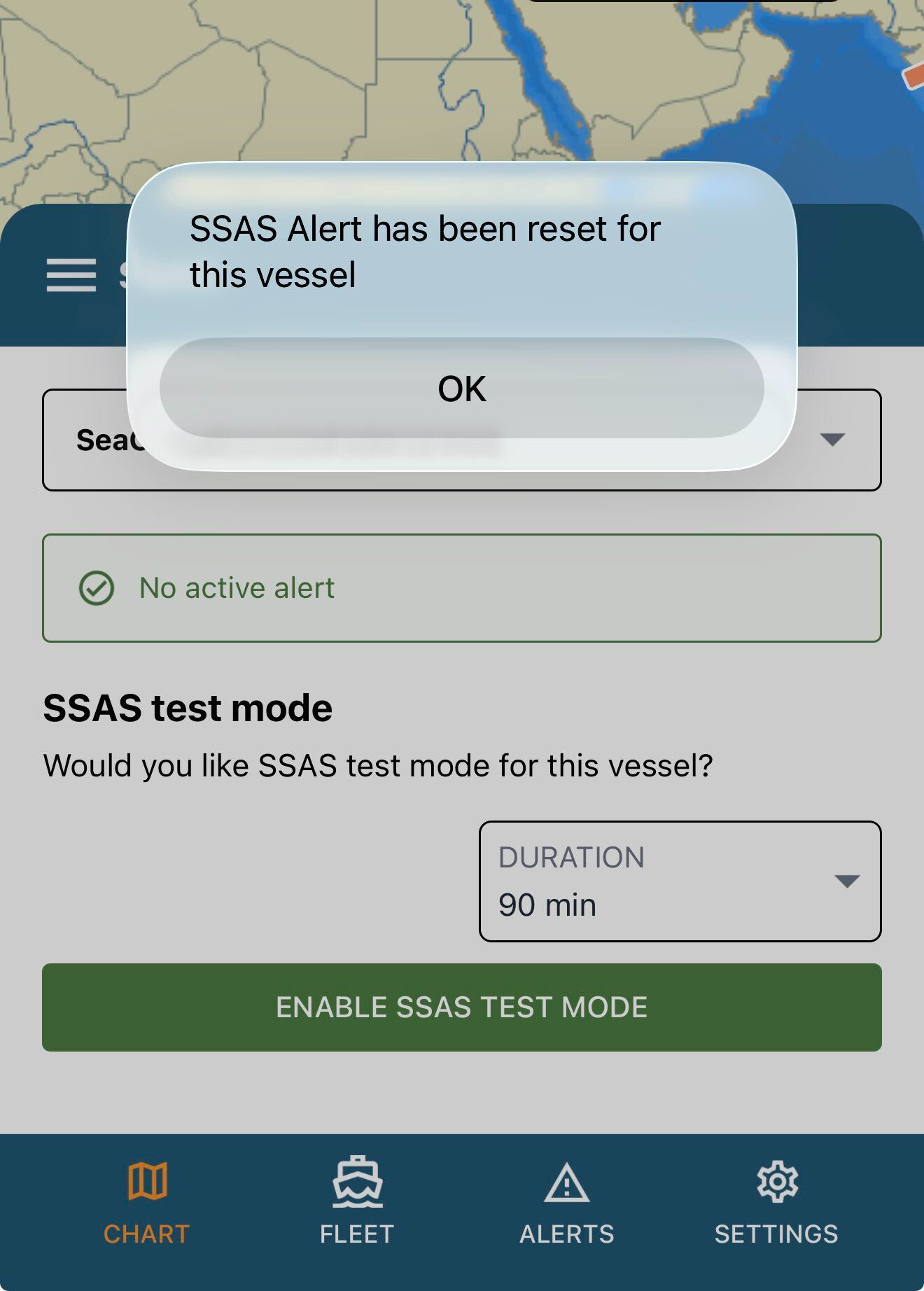
Once the Reset Alert button is selected, the status should reset and revert back to the normal operating status.
As per https://podium.support.polestarglobal.com/en/article/ssas-testing-resetting - certain terminal types such as INM-C do require onboard manual resets to the unit as well, to ensure no further transmissions. Please ensure this is performed during testing.
Rest of the available features within mobile application:
Alongside the above, additional features are available to view, as already listed below:
Available in the mobile application
- Latest Position – View the vessel’s most recently reported position.
- Vessel Info – Review key vessel information.
- Nearest Port – View the port nearest to the vessel.
- Weather – View the available weather forecast for the vessel’s location.
- SSAS – Access SSAS functions, including test mode and alert-reset actions.
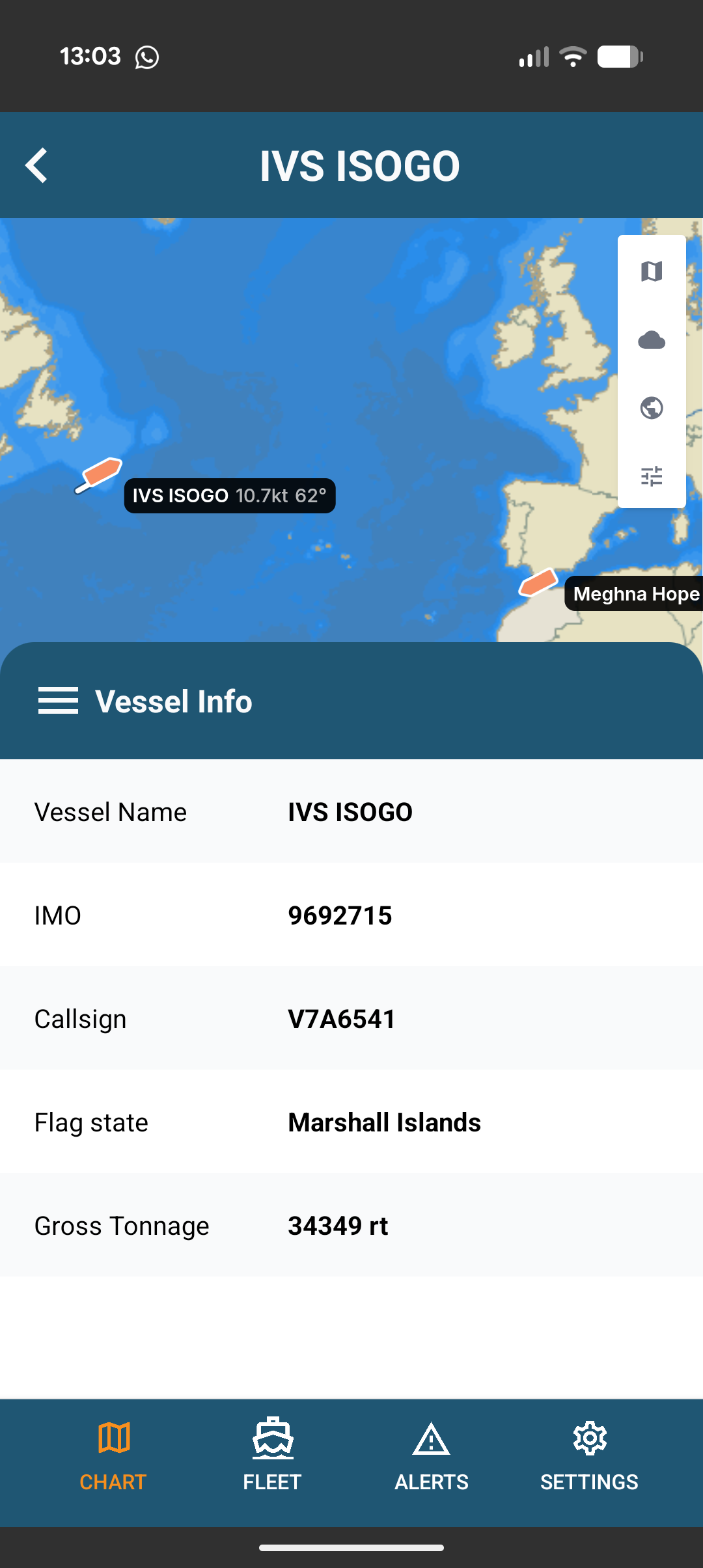
Vessel Info - Here this provides a basic overview of the vessel information.
What is not available in the mobile application?
Whilst the Mobile Application retains the essential tracking and SSAS features, and usage of the chart control tools, many of the main Podium tab menu features are not available in the mobile application. This includes:

- Security Tab - for all publicised Security events around the world.
- AIS Tab - for specific AIS and Vicinity vessel search.
- Ports Tab - where you can search for a specific Port around the world.
- Routes Tab - for generating specific routes.
- Measure Tab - for the feature in measuring distance from point to point.
In addition to the above, the mobile application also does not include the Configure or Views sections.
To use any of these missing features, this will need to be done within the main web-based platform of Podium.