
Vessel Registrations in Podium
Vessel Registrations in Podium
This feature allows you to submit vessel registration requests directly via Podium.
Note: This feature is available on request and will need to be enabled by our Support Team. Please contact support@polestarglobal.com to enable Vessel Registrations for your account
Accessing Vessel Registrations
- Log into Podium and select your user profile on the bottom left of the page.
- On the pop-up window, select Organisational Settings.
- Navigate to the Organisation Vessels tab on the next page.
Here you will see two tabs:
- Active – Displays all active vessels in the account.
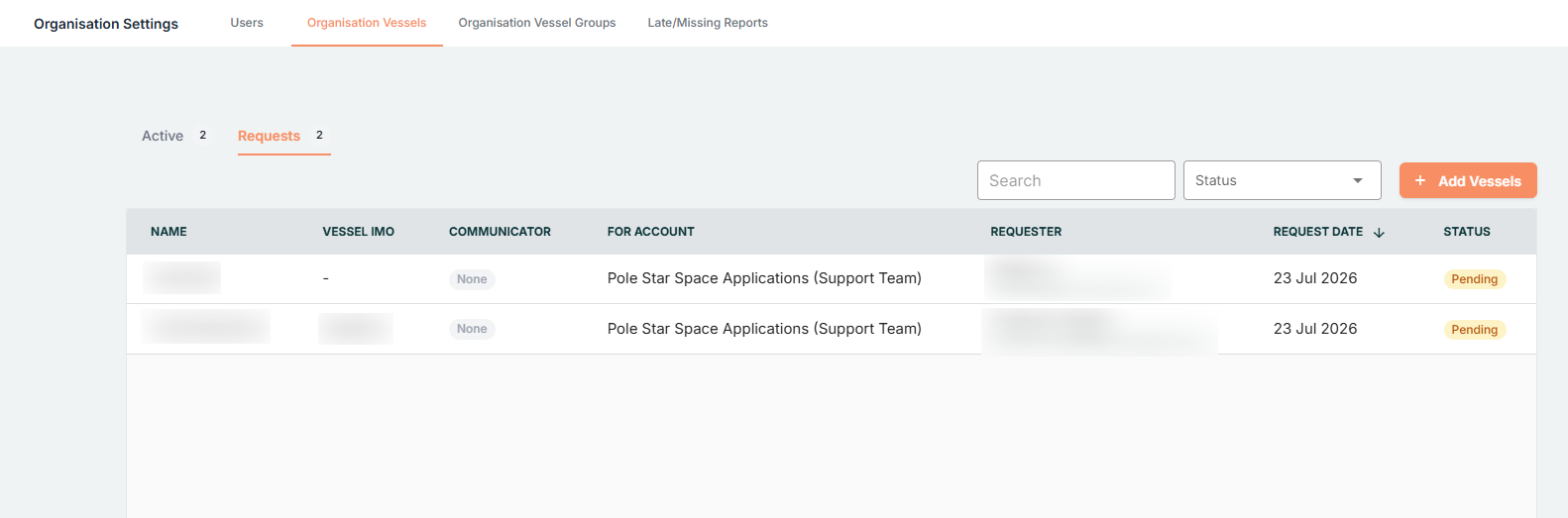
- Requests – Displays all pending registration requests.
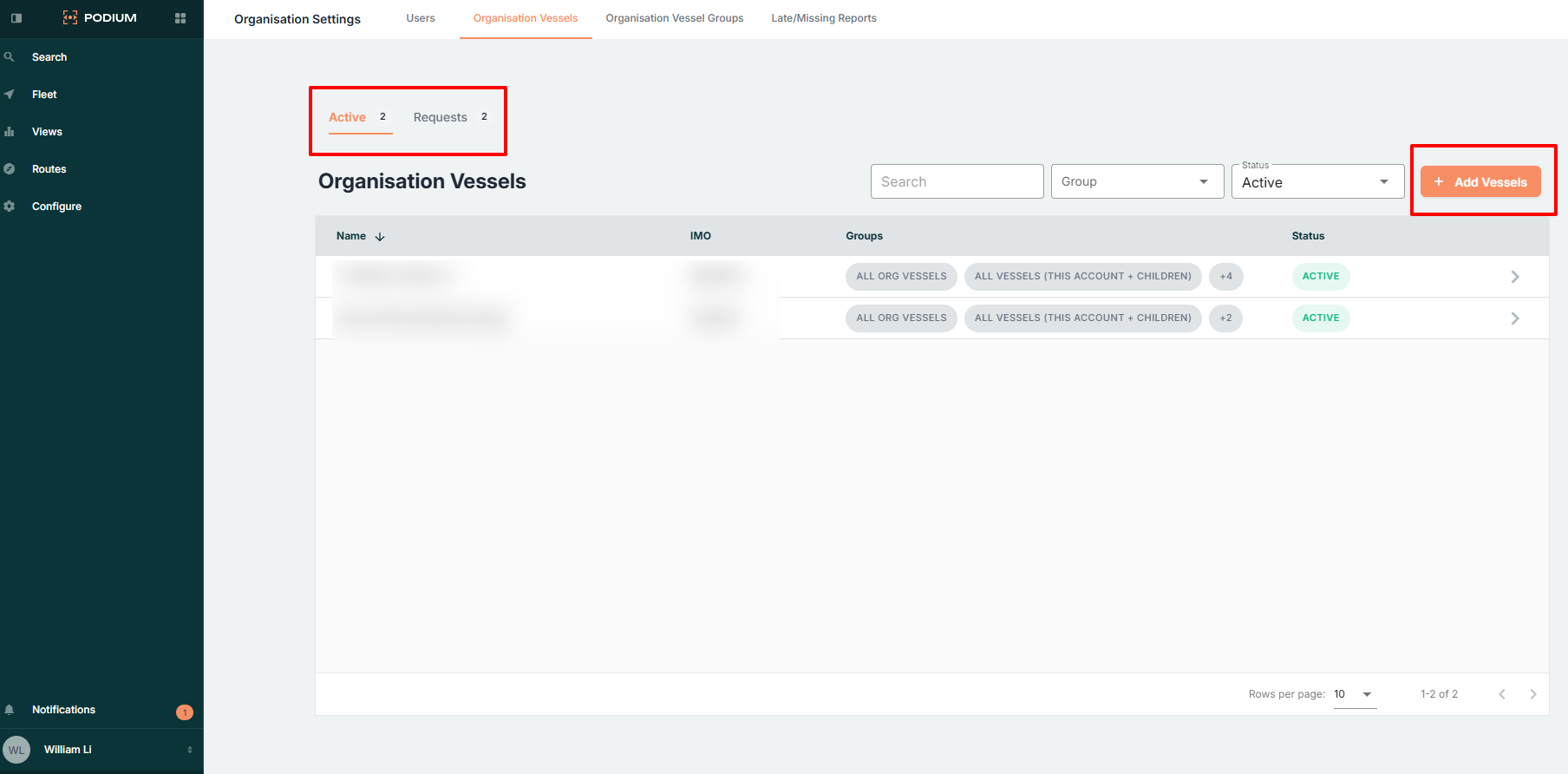
Submitting a New Registration
Page 1 – Vessel & Communicator Details
- Select + Add Vessels to begin a new registration.
- On the Add Vessels page, select Add Vessel in the top middle section of the page. This will open a pop-up window on the right column.
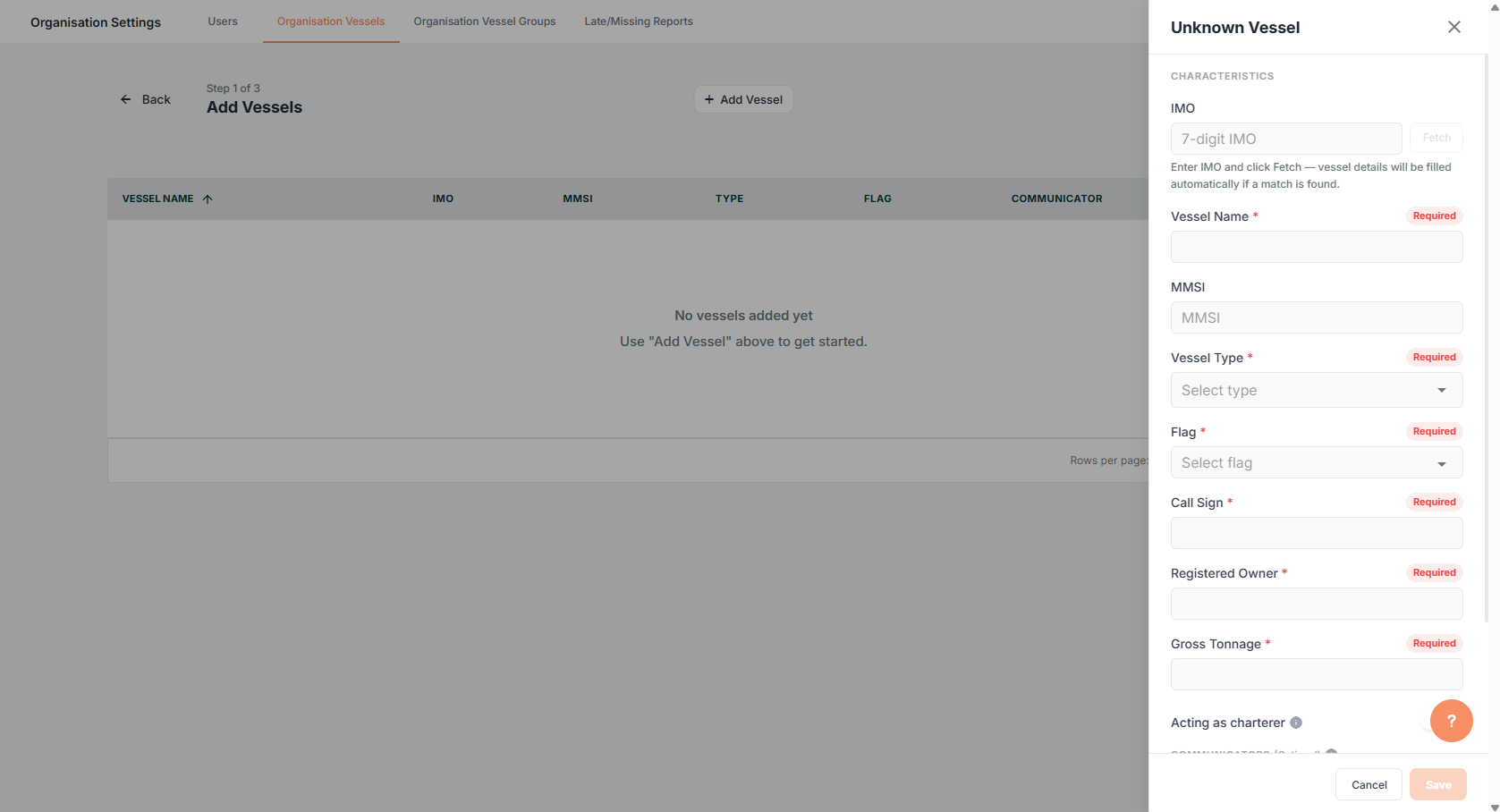
Vessel Details
In the pop-up, enter all applicable details for the vessel:
- IMO
- Vessel Name
- MMSI
- Vessel Type
- Flag
- Call Sign
- Registered Owner
- Gross Tonnage
Note: IMO and MMSI are not mandatory fields. If the vessel does not have this information or it is not applicable, these can be left blank. However, if neither an IMO nor MMSI is provided, at least one communicator must be added for the registration to be submitted.
Adding a Communicator
Once the vessel details have been entered, proceed further down the pop-up and select Add Communicator.
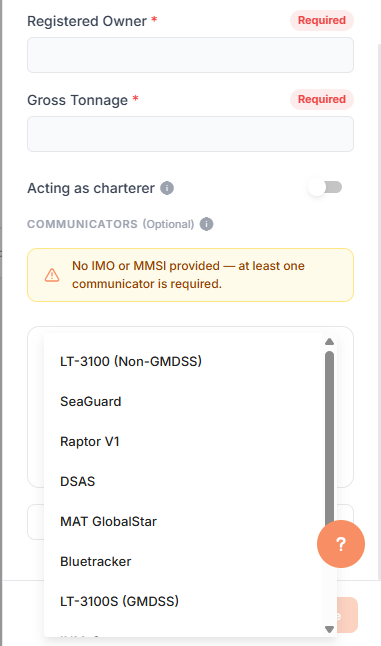
Select the appropriate Type from the drop-down menu:
- LT-3100 (Non-GMDSS)
- Seaguard
- Raptor V1
- DSAS
- MAT Globalstar
- Bluetraker
- LT3100S (GMDSS)
- INM-C
- MAT IDP
- Raptor V2
- Iridium Certus
Important: Please ensure you are certain of the hardware type before selecting.
Once the terminal type is selected, fill out all required information, including:
- The DPR (Daily Positional Report) frequency.
- Whether the terminal will be used for SSAS (if applicable). Note that certain terminal types are tracking only — the SSAS option will not be visible for these.
Note: You can submit more than one vessel at a time. Ensure all required vessels are added before proceeding to the next page.
Once all vessels are entered, select Next to proceed to Page 2.
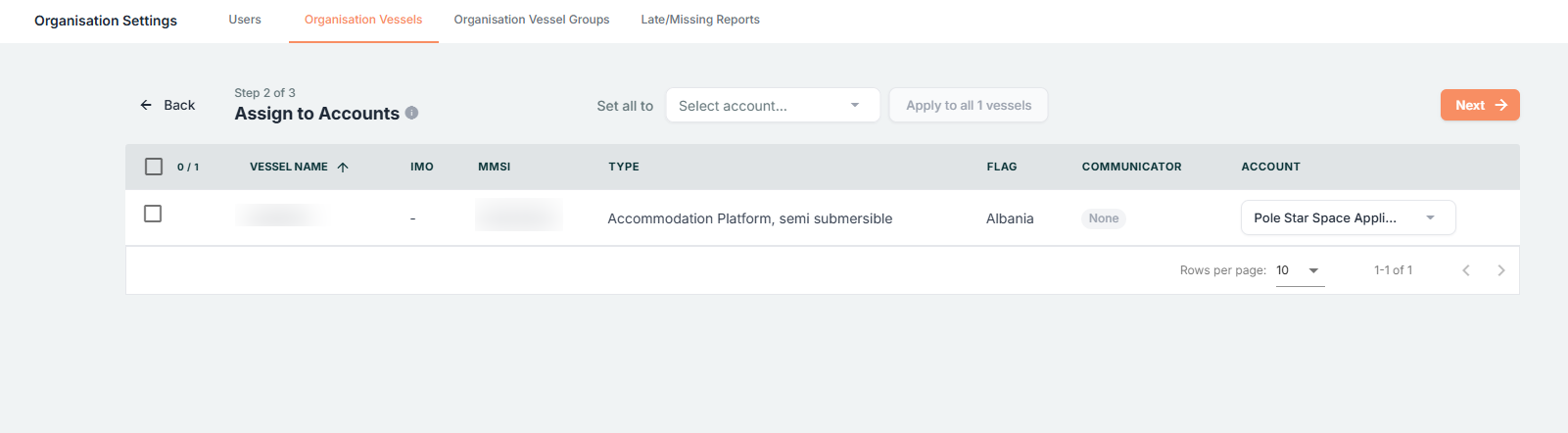
Page 2 – Account Assignment
On Page 2, you have the option to assign the vessel(s) to a specific account. This is applicable if you are managing several child end-user accounts.
Disclaimer:
If required, you must assign the vessel to a specific account. If a new end-user account needs to be created, please contact our Support Team at
The account must be created before submitting any vessel request(s) in Podium.
If you are managing a single direct account, this page can be skipped.
Select Next to proceed to Page 3.
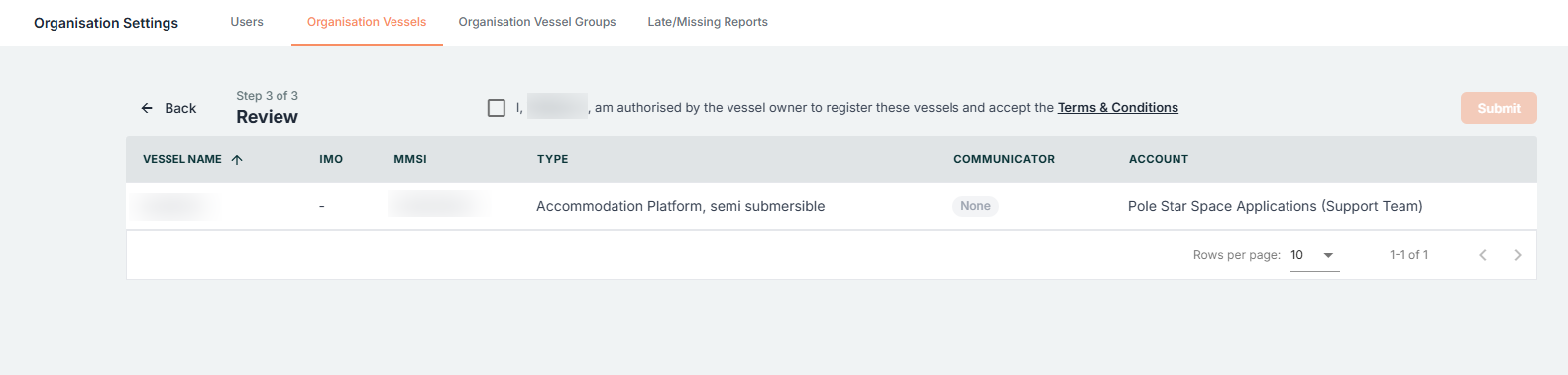
Page 3 – Terms & Conditions
Review and tick to accept the Terms and Conditions for the registration(s), then select Submit.
Once submitted, the registration request will be sent directly to our backend systems.
What Happens Next
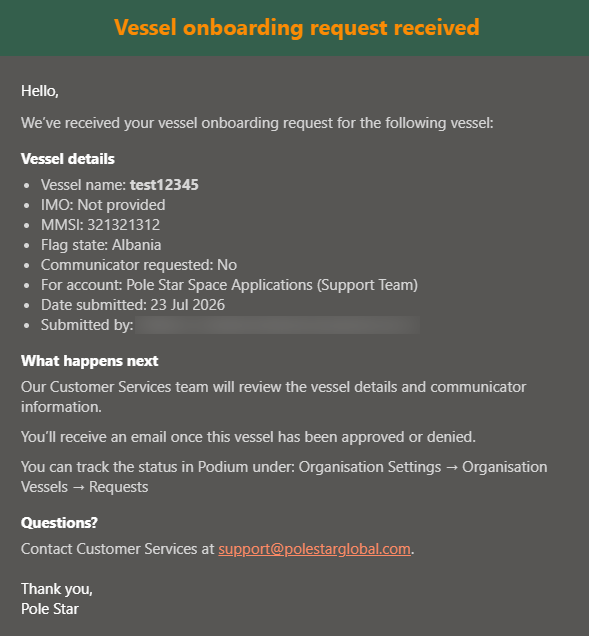
- You will receive a confirmation email notifying you that the request has been submitted.
- A subsequent email will be sent to our Support Team for review.
- The vessel will appear in the Requests tab until an update is received.
Our Support Team will review each submission through our internal screening processes. Depending on the outcome, the vessel will be either:
- Approved – The vessel registration is confirmed and activated.
- Denied – Our Support Team will follow up immediately with the reasons for the denial.
Note: If additional documentation is required due to a data mismatch, our Support Team will follow up immediately to request the necessary information.