Fleet Page Overview
Fleet Page Overview
Select the Fleet tab from the main navigation to access the Fleet page.
The Fleet page displays an interactive map showing all your assigned vessels.
- The vessel list appears on the left-hand side of the page.
- Select any vessel to view its current position on the map.
The Fleet page contains multiple sub-tabs:
- Vessels - Displays the list of all vessels with basic information. Select a vessel to view details, or select Full Details for comprehensive information.
- SSAS - View and manage SSAS alerts for all configured vessels.
- Security - Displays security incidents and piracy events in the selected date range.
- AIS - Search for vessels by name, callsign, IMO, or MMSI, or view vessels in a specific vicinity.
- Ports - Shows port locations and information on the map.
- Routes - Provides access to route planning tools.
- Measure - Calculate distances between ports or positions.
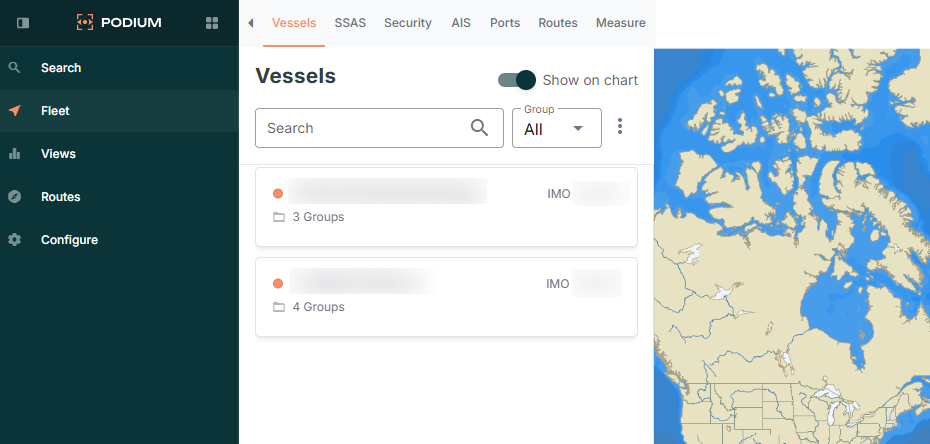
Chart Overlays and Features
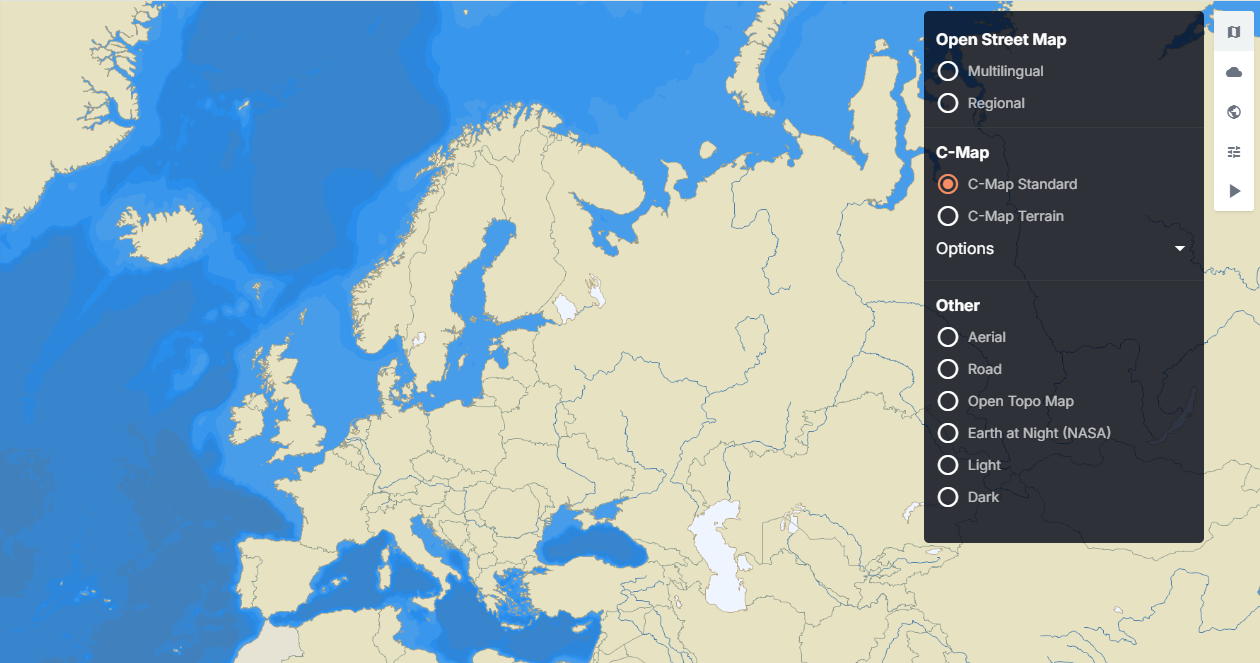
Here you can select 3 icons located in the top-right corner of the map.
- Map Icon (Map Style) - select this function to toggle and change the map to any of the available alternative map views such as:
- Open Street Map - Multilingual/Regional
- C-Map - C-Map Standard/Terrain
- Other:
- Aerial
- Road
- Open Topo Map
- Earth at Night (NASA)
- Light
- Dark
- Cloud icon (Weather)- select this function to toggle to access weather and sea state overlays. Toggle overlays on or off for options such as - Adjust overlay opacity using the slider at the bottom of the weather menu.
- Wind
- Wave
- Current
- Advanced.
- World icon (Global Overlays) - Global Overlays for specific features
- Geo Zones
- Historic Density Maps
- Global AIS Positions
- AIS Playback
- Cog Icon (Settings)
- Enable/Disable Live Sync