
Multi-Factor Authentication (MFA)
About Multi-Factor Authentication (MFA)
Multi-Factor Authentication (MFA) adds an extra layer of security to your Podium account. In addition to your password, you will enter a six-digit one-time passcode (OTP) sent to your registered email address when you sign in or complete certain account actions.
Set up MFA for the first time
When MFA is enabled for your organisation, existing users will continue to use their current login details until their next sign-in. During that sign-in, you will be asked to verify your identity and create a new password.
- Open Podium and enter your username or registered email address and password.
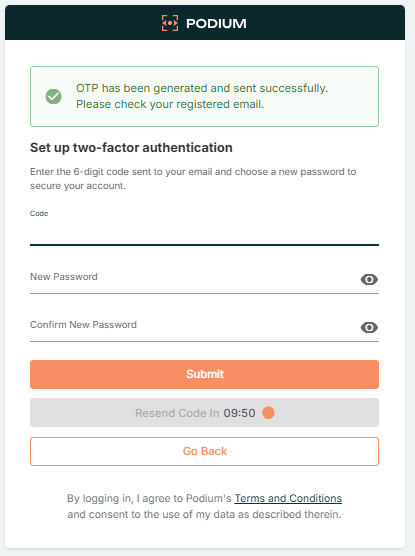
- Retrieve the six-digit OTP sent to your registered email address.
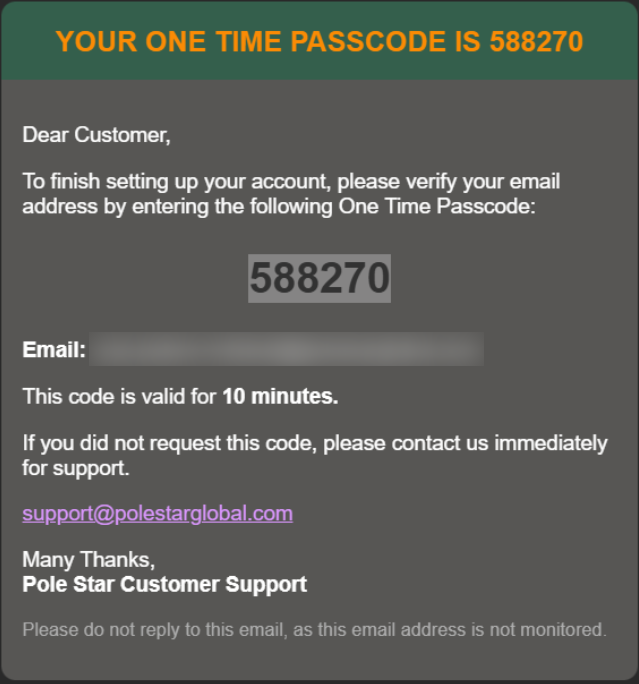
- Enter the OTP in Podium. The code is valid for 10 minutes.
- Create a new password that meets the password requirements.
- Select Submit.
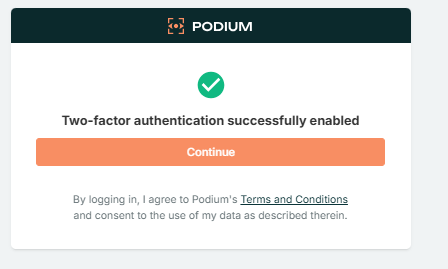
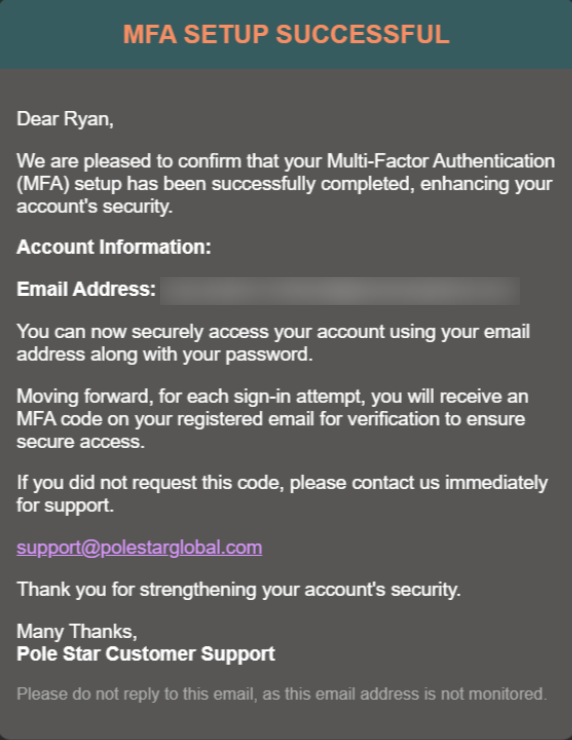
Once setup is complete, return to the login page and sign in using your new password. You will receive an email confirming that MFA setup was successful.
If an administrator removes your Podium user and later adds the same user again, you will need to complete the MFA setup process again the next time you sign in. Follow the first-time setup steps to verify your identity and create a new password.
Sign in with MFA
After MFA has been set up, you will use an OTP each time you sign in to Podium.
- Enter your username or email address and MFA password.
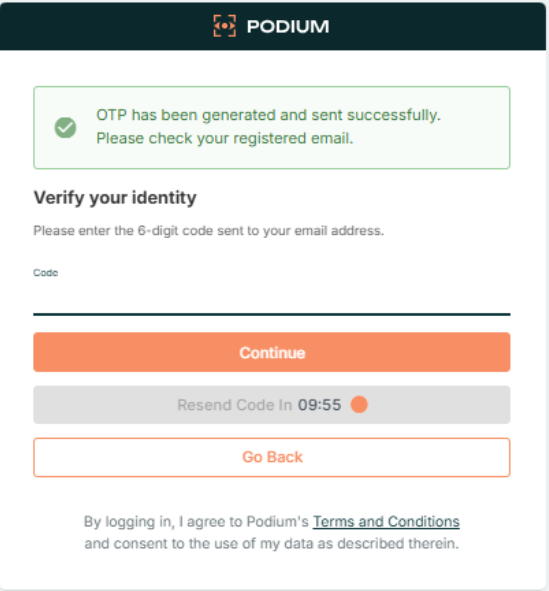
- Retrieve the six-digit OTP sent to your registered email address.
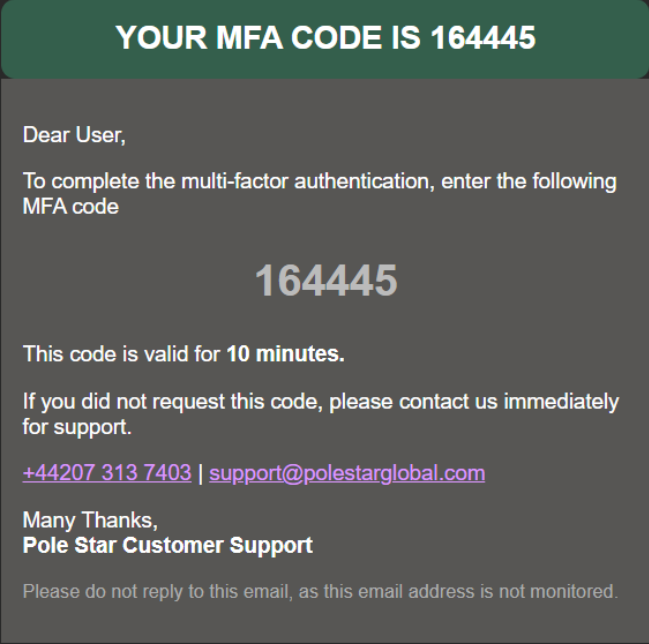
- Enter the OTP in Podium.
- Select Submit.
- You will be directed to your configured Podium landing page.
Reset a forgotten password
If you have forgotten your password, you can reset it from the Podium login page.
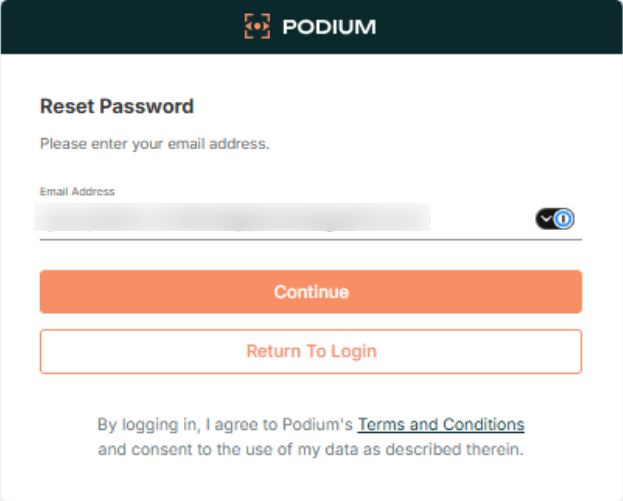
- Select Forgot Password.
- Enter your username or registered email address and select Confirm.
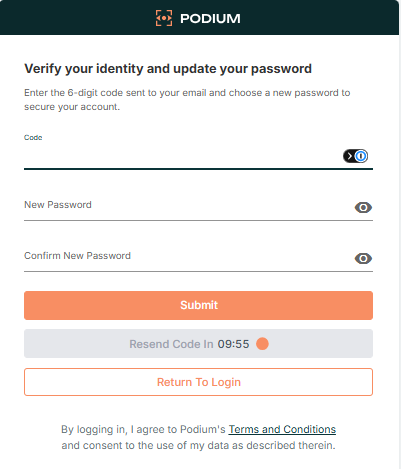
- Retrieve the six-digit OTP sent to your registered email address.
- Enter the OTP and your new password.
- Select Submit.
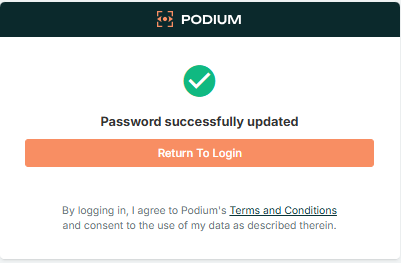
- Return to the login page and sign in with your new password.
Change your password
To change your password after signing in:
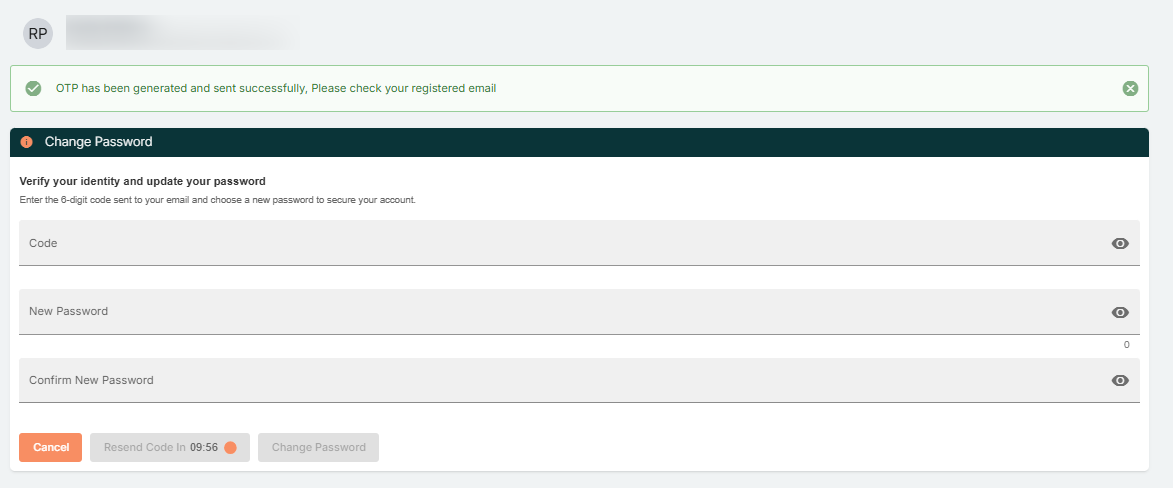
- Open User Settings and select Change Password.
- Select Send one time code.
- Retrieve the OTP sent to your registered email address.
- Enter the six-digit OTP in Podium.
- Enter your new password and submit the change.
- When you see Password reset successfully!, sign in again with your new password.

Troubleshoot OTP issues
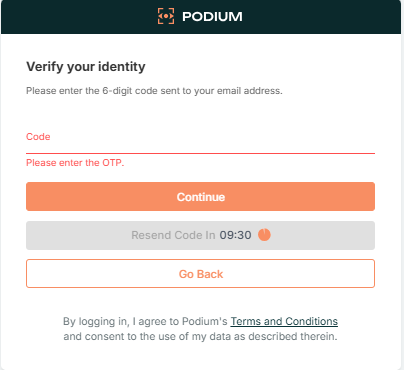
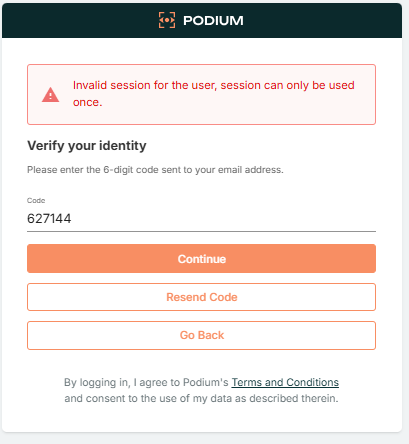
- No code entered: Podium will prompt you to enter an OTP before you can continue.
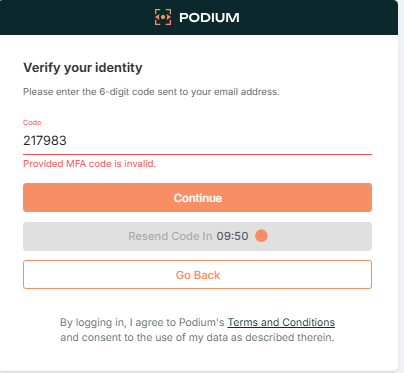
- Invalid OTP: Check the code in your email and enter it again.
- Expired OTP: OTPs sent during MFA setup and password reset are valid for 10 minutes. Request a new code if yours has expired.
OTP limits and account protection
During MFA setup and password reset:
- You can generate a maximum of three OTPs.
- Each generated OTP allows up to five incorrect verification attempts. If you enter a code incorrectly five times, that code will stop working and you will need to request a new one. Requesting a new code uses one of your three OTP generations.
- If all three OTP generation attempts are used, your email address will be blocked from generating further setup or password-reset OTPs for 24 hours.
OTPs used for regular MFA sign-in are not subject to the three-OTP generation limit. You can request another sign-in OTP if required.
If your email address has been blocked and you need immediate access, contact your Podium Support representative for assistance.
Leaving an active MFA setup session
If you select Back, close the browser tab, refresh the page, or close the browser while MFA setup is in progress, Podium may display a message that an active MFA session exists. Leaving the session may require you to restart the authentication process.
Where possible, complete the MFA setup before leaving the page.
If you do not receive an OTP, your OTP has expired, or you are unable to access your account, contact Support at support@polestarglobal.com.